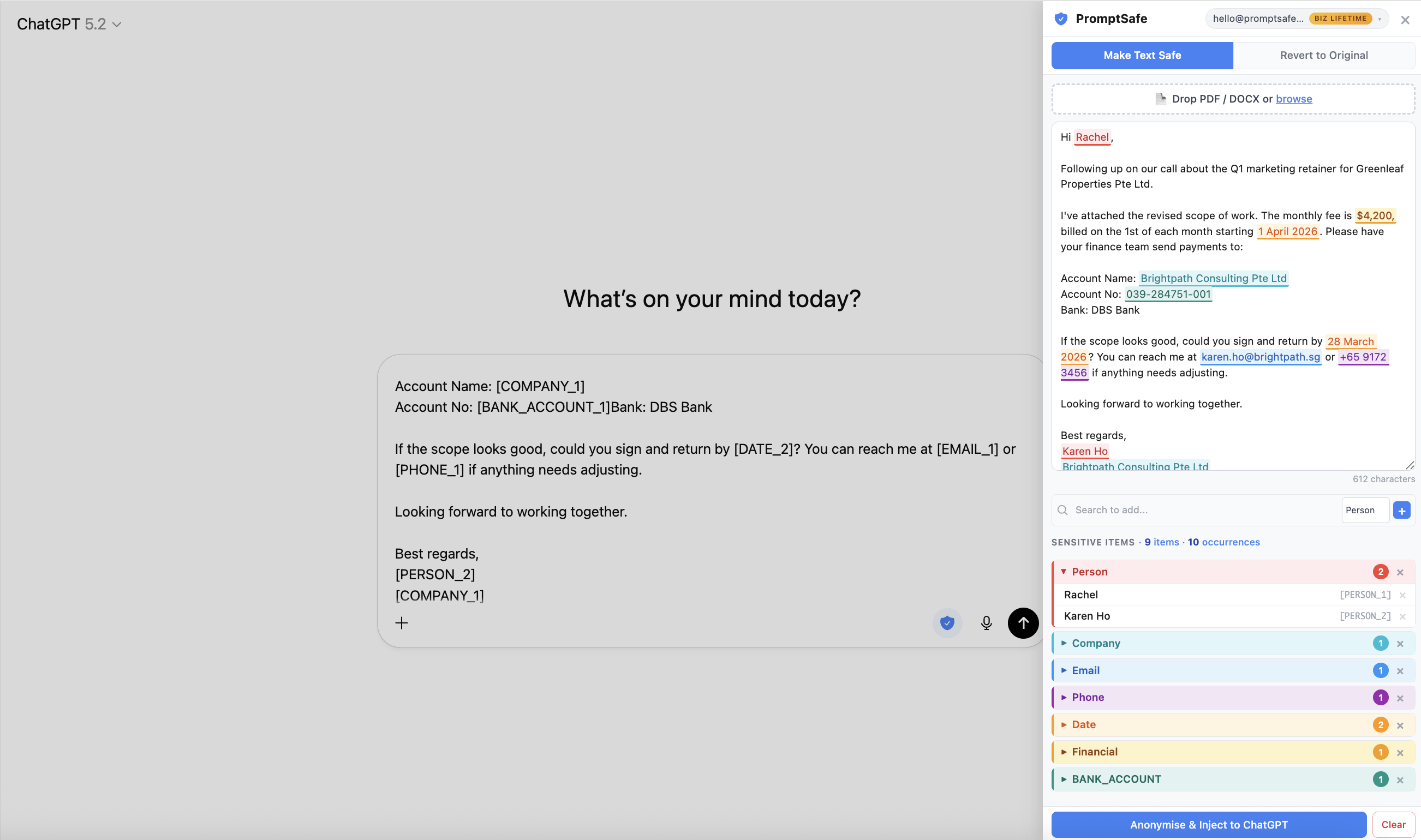
The PromptSafe side panel detects and highlights sensitive client details (left) before injecting safe placeholders directly into ChatGPT (right) — no tab-switching, no copy-pasting.
Let's be honest: if you're a virtual assistant in 2026, you're already using AI. Maybe you draft emails with ChatGPT, summarise meeting notes with Claude, or rewrite client proposals with a quick prompt. You'd be leaving money on the table not to.
But there's a line. And you hit it the moment you need to work with real client data — the email with the client's full name and personal mobile number, the contract that mentions the company's legal name and address, the invoice with bank details.
You know you shouldn't paste that straight into ChatGPT. Your client trusts you with their information. But manually find-and-replacing every name, email, and phone number across a three-page document? That's a twenty-minute detour that kills the whole point of using AI in the first place.
This article walks through how virtual assistants are solving this with a Chrome extension that anonymises client data before it reaches any AI tool — and restores it after.
- Client emails and follow-ups
- Proposals and SOPs
- Meeting notes and action items
- Invoices, receipts, and bank details
- Customer support replies
- Outreach sequences and CRM notes
- Resume screening and candidate summaries
The confidentiality problem VAs don't talk about
Virtual assistants operate in a unique position: you handle more confidential information, across more organisations, than almost any other role. A single morning might involve drafting a follow-up for Client A using their customer's full name, reformatting a proposal for Client B that contains financial projections, and replying to Client C's customers on their behalf.
Every one of those tasks could benefit from AI. And every one of them contains information your clients didn't agree to share with OpenAI, Anthropic, or Google.
And if you've signed an NDA or confidentiality agreement — which most VAs have — this isn't just an etiquette issue. When you paste client data into ChatGPT, that text is transmitted to OpenAI's servers. Depending on the wording of your NDA, that could count as disclosing confidential information to a third party. It doesn't matter that you're using it as a productivity tool. The data still left your device and reached someone else's infrastructure.
Many NDA and confidentiality clauses restrict sharing client information with external services without permission. If you're using ChatGPT or Claude, your text is typically transmitted to a provider's servers — so treat that like sharing with a third party unless your client has approved it. This is general information, not legal advice.
It doesn't take much for AI to connect dots. A client's name, email address, and company mentioned together in a single prompt is more than enough to identify them — and once that text is on someone else's server, you can't take it back.
Most VAs solve this by either not using AI on sensitive tasks (leaving productivity on the table) or by pasting everything in and hoping for the best (leaving trust on the table). There's a third option.
The workflow: anonymise, prompt, restore
The idea is simple. Before your text reaches ChatGPT or Claude, every sensitive detail gets replaced with a placeholder. [PERSON_1] instead of "Sarah Chen". [COMPANY_1] instead of "Acme Holdings". [EMAIL_1] instead of the real email address. The AI gets full context about the structure of your request without ever seeing the content that makes it confidential.
Then, when the AI returns its response, you swap the placeholders back for real names. The final output reads naturally — your client never knows the difference.
Here's what that looks like in practice:
Hi Sarah Chen, following up on our call about the partnership between Meridian Consulting and Apex Digital. Could you send the signed agreement to sarah.chen@meridian.com by Friday? My direct line is +65 9123 4567.
Hi [PERSON_1], following up on our call about the partnership between [COMPANY_1] and [COMPANY_2]. Could you send the signed agreement to [EMAIL_1] by Friday? My direct line is [PHONE_1].
The AI can still rewrite the email, change the tone, translate it, or summarise it. It just can't learn who Sarah Chen is, what company she works for, or how to reach her.
How the Chrome extension works (step by step)
The PromptSafe Chrome extension runs as a side panel alongside ChatGPT and Claude. You don't switch tabs. Drop in a document, review what's detected, and hit "Anonymise & Inject" — safe text goes straight into the chat input. When the AI responds, restore the real names in one click.
Open the side panel
After installing the extension, click the PromptSafe icon next to the Microphone icon on ChatGPT. The side panel opens right alongside your conversation — no tab-switching needed.
Drop & detect
Drag in a PDF, DOCX, or image — or paste text directly. PromptSafe extracts the content and instantly highlights names, NRICs, emails, phone numbers, financials, and more.
Review & adjust
Check what was detected. Remove any false positives, or highlight text the tool missed and label it manually — Person, Company, Email, or any of 18+ types. You're always in control of what gets anonymised.
Inject safe text
Hit "Anonymise & Inject" — safe text with [PERSON_1] placeholders is inserted directly into the ChatGPT or Claude chat input. No copy-pasting needed.
Restore original data
The AI responds using placeholders. On ChatGPT, click the blue restore banner that appears under the output. On Claude, copy the response and paste it in the extension's Restore tab. Either way — one click and all real names, emails, and details are back.
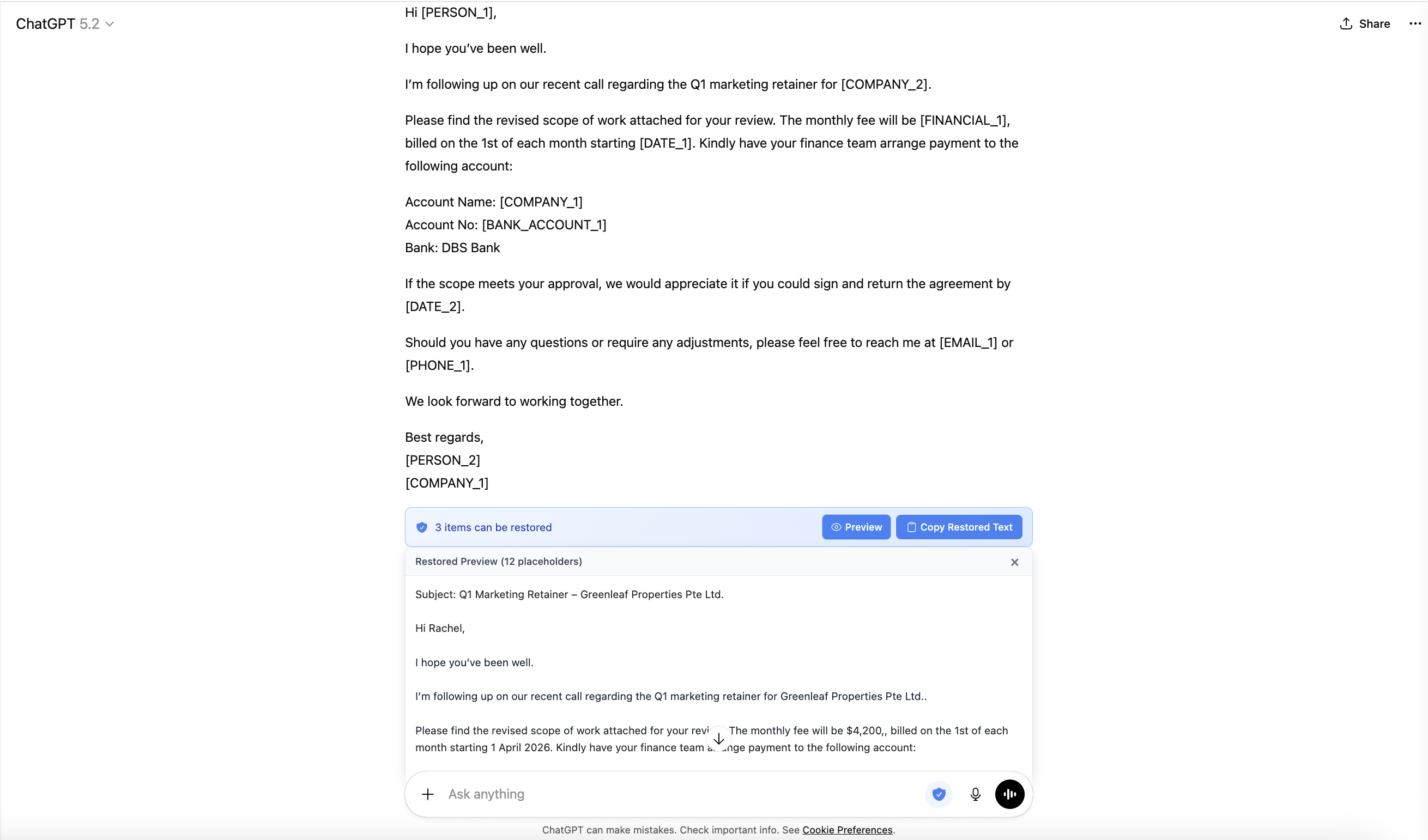
ChatGPT responds with placeholders. Click the blue restore banner and all real names and details are instantly restored.
Most privacy tools make you leave the tab, open a separate app, or copy-paste between windows. The Chrome extension side panel sits right next to your AI conversation and injects safe text directly into the chat input. It's the difference between a workflow that takes 30 seconds and one that takes 3 minutes — and for a VA processing dozens of tasks a day, that difference adds up fast.
Five real VA scenarios
Here's what this looks like across the types of tasks freelancer VAs handle every day.
Your client asks you to draft follow-up emails to their customer list. Each email contains the customer's name, the client's company name, and sometimes a purchase order number. You paste the template into PromptSafe, anonymise all names and references, ask ChatGPT to make the tone warmer and more conversational, then restore the names in the AI's output. Ten emails drafted in the time it used to take to do two.
You manage accounts receivable for a client. The overdue list has customer names, invoice numbers, amounts, and bank details. You need to send polite but firm reminders. Anonymise the list, ask ChatGPT to generate a professional payment reminder for each, then restore. The emails are personalised, tactful, and contain zero risk of the bank details leaking.
A client exports 50 leads from their CRM and asks you to write personalised outreach emails. The spreadsheet has names, emails, company names, and job titles. You anonymise the data, ask ChatGPT to draft a 3-email sequence template, then restore. Each email reads like it was hand-written — because the structure was AI, but the details are real.
You took notes during a Zoom call between your client and their investor. The notes mention the investor by name, reference a specific funding amount, and include the client's mobile number. You anonymise the notes, ask Claude to restructure them into action items with owners and deadlines, then restore. The summary is professional, accurate, and safe.
Your client is hiring and sends you 15 resumes to shortlist. Each resume has the candidate's full name, email, phone number, and address. You anonymise a resume, ask ChatGPT to summarise the key qualifications against the job description, then restore. You get consistent summaries without any candidate's personal details touching an AI server.
Your client data never leaves your browser
Here's the part that makes this different from other tools: PromptSafe processes your document content entirely in your browser. The detection engine, the anonymisation, the placeholder mapping, and the restoration all run in JavaScript on your machine. Your pasted text is never transmitted to any server.
This isn't a claim you have to take on faith. You can verify it yourself:
Open Chrome DevTools (F12), go to the Network tab, and clear it. Then paste a document into PromptSafe and anonymise it. Check the requests — you won't find any that contain your pasted text. PromptSafe doesn't transmit your document content to any server. We wrote a detailed guide on how to check what any website does with your data.
For VAs, this is a selling point. When a client asks "how do you handle my data when using AI?", you can honestly say: "Your names and details are replaced with placeholders before anything reaches ChatGPT. The real data never leaves my machine." That's a confident answer — and it's one most VAs can't give right now.
What PromptSafe does NOT do
If you've been burned by tools that promise privacy and then bury a data-sharing clause in page 14 of their terms, this matters:
Doesn't store your text remotely. Your pasted content stays on your device and isn't persisted after you close the tab.
Doesn't send your text to servers. All processing runs in your browser.
Doesn't train any model on your data. There's no model to train — it's pattern matching in JavaScript.
Doesn't require an account to try. Paste something in right now, no sign-up.
What it costs (and why VAs find it worth it)
The free tier needs no sign-up, no email, no credit card. It handles up to 3 sensitive items per document — enough to test the full workflow on a short client email and see exactly how it works. For real client documents with dozens of names, emails, and phone numbers, the Pro plan at $5.99/month removes all limits and adds PDF redaction for formatted documents.
To put that in perspective: if PromptSafe saves you even 30 minutes a week in manual find-and-replace work, and you bill at $25/hour, the tool pays for itself in the first week. More importantly, it removes the mental overhead of constantly second-guessing what you can and can't paste into AI.
Try it on a real task — takes 30 seconds
Install the Chrome extension, paste a client email into the side panel, and watch every name and email turn into a safe placeholder. No sign-up required.
2. Hit "Anonymise & Inject" into ChatGPT or Claude
3. AI responds → restore real names in one click
No detection is perfect — PromptSafe lets you manually tag anything it misses before you anonymise.
Add to Chrome — Test It on Your Next Client EmailFrequently asked questions
It depends on the wording, but many NDAs restrict sharing client information with external services without permission. When you use ChatGPT or Claude, your text is typically transmitted to the provider's servers, which could be treated as sharing with a third party. The safest approach is to anonymise client details before they reach the AI. This is general information, not legal advice.
Yes — if you anonymise client details before they reach ChatGPT. PromptSafe replaces names, emails, phone numbers and other sensitive items with placeholders before your prompt is sent. Everything runs locally in your browser, so no client data is transmitted.
Yes. The side panel works alongside both ChatGPT and Claude. The anonymise and inject steps are the same on both. The restore step differs slightly: on ChatGPT, a blue banner appears below the AI's output — click it to restore real names instantly. On Claude, you copy the AI's response, paste it into the extension's Restore tab, and click restore there.
No. PromptSafe doesn't transmit your pasted document content. You can verify this in DevTools by checking requests and confirming your text isn't being sent.
PromptSafe detects 18+ types including person names, company names, emails, phone numbers, addresses, dates, NRIC numbers, financial details, credit card numbers, passport numbers, and more. You can also manually label anything the automatic detection misses.
Free for up to 3 items per document, no sign-up required. Pro at $5.99/month for unlimited items and PDF support. Most VAs find the Pro plan pays for itself in the first week.